How to Block Websites on Android Phone & Tablet? A Guide for Enterprise
Android phones and tablets have become everyday workplace tools. Employees use them to access business apps, communicate with teams, browse the web, and complete tasks from almost anywhere. But unrestricted internet access can also expose company devices to distracting, inappropriate, or potentially unsafe websites.
For businesses managing Android devices, website access therefore needs the same attention as application and device security. Blocking unnecessary websites can help reduce distractions, limit exposure to harmful web content, and keep company-owned devices aligned with their intended business purpose.
There are several ways to block websites on Android, from built-in Google features and browser settings to DNS filtering and parental controls. However, organizations managing multiple devices typically need centralized policies rather than configuring every phone or tablet individually.
In this blog, we will explain how to block websites on Android phones and tablets, compare the available methods, and show how businesses can use Quantem MDM to centrally manage website restrictions across their Android device fleet.
Why Block Websites on Android?
A managed Android device should support the work it was deployed for, not give users unlimited access to the internet. When employees can freely visit any website, organizations have less control over distractions, risky content, and unnecessary network usage.
Website restrictions can help IT teams create a more controlled browsing environment across company phones and tablets.
1. Keep Work Devices Focused on Their Purpose
An Android device used for work may only need access to a handful of websites. A field employee might need a service portal, while a retail worker may only require inventory and POS systems. Restricting unrelated sites keeps the device aligned with its intended role.
2. Create a Safer Web Environment
Not every website accessed from a business device is trustworthy. Phishing pages, malicious downloads, and unsafe content can create additional security risks. Blocking known risky or inappropriate destinations reduces the chances of users reaching them in the first place.
3. Make Better Use of Network Resources
Video streaming, gaming, and other bandwidth-heavy websites can consume resources without contributing to business operations. Limiting this traffic can help organizations reserve network capacity for essential applications and services.
4. Enforce Acceptable Web Usage
Organizations often have rules governing how company devices and internet connections should be used. Website restrictions provide a practical way to put those rules into effect by limiting access to sites that fall outside approved usage.
5. Protect Sensitive Business Information
Employees may access websites that request file uploads, credentials, or other sensitive information. Restricting access to unapproved or risky websites can reduce the chances of business data being exposed through unsafe web services.
What are the Different Ways to Block Websites on Android Devices?
There are several ways to control website access on Android, depending on the type of device and level of control required. Here are the most common methods:
1. Use Google SafeSearch
Google SafeSearch is a built-in Google feature that helps filter explicit or inappropriate content from search results on Android devices. When enabled, it can reduce the chances of users encountering adult or otherwise unsuitable content while searching the web.
To enable it, open Google Search settings, find SafeSearch, and turn on the filtering option. This provides a simple way to create a cleaner search experience without installing additional software.
2. Adjust Chrome's Security Settings
Chrome includes Safe Browsing settings that help protect Android users when they visit websites. These settings can warn users about known dangerous websites, downloads, and phishing attempts.
To configure it, open Chrome → Settings → Privacy and security → Safe Browsing, then select Enhanced Protection. This gives users stronger protection while browsing on Android devices.
3. Configure Private DNS
Android's Private DNS feature can be configured with a DNS filtering service to control access to unwanted categories of websites. Instead of managing individual websites through the browser, DNS filtering works at the network lookup level.
Go to Settings → Connections → More connection settings → Private DNS, choose the option to specify a provider hostname, and enter the hostname provided by your DNS service. This can help filter malware, explicit content, and other unwanted websites without installing a separate app.
4. Use Google Family Link
Google Family Link provides website controls for supervised Android devices. It allows a supervising account to manage Chrome browsing, apply content filters, and specify websites that should be blocked or allowed.
After linking the supervised Google Account, open Family Link → select the profile → Controls → Content restrictions → Google Chrome. From there, you can choose the appropriate browsing restriction or add specific websites to the allowed or blocked list.
5. Use an Android MDM Solution
An Android MDM solution gives businesses a centralized way to manage website access across multiple Android phones and tablets. Instead of configuring restrictions individually, IT administrators can create web access policies and apply them to managed devices.
MDM can also bring website controls together with other device management policies, allowing organizations to maintain consistent web access rules across their Android device fleet from a central console.
Which is the Best Way to Block Websites on Android Devices?
For businesses managing multiple Android phones and tablets, an Android MDM solution provides the most centralized approach to website management. Other methods can be useful for specific needs, but they generally focus on one area, such as search filtering, browser protection, DNS filtering, or supervised accounts.
The main limitation is scalability and centralized control. SafeSearch and Chrome settings are configured around Google Search or the browser, while Private DNS depends on DNS-level filtering. Family Link is designed around supervised accounts and devices. These approaches can work for individual or specific use cases, but they do not provide the same centralized device-policy management needed when an organization has a larger Android fleet.
For enterprise and education deployments, MDM provides a broader management layer. IT teams can centrally define website restrictions, apply them to managed Android devices, and combine web access policies with other device management controls. This makes MDM a practical approach for organizations that need consistent website policies across multiple Android phones and tablets.
How to Block Websites on Android Using Quantem MDM?
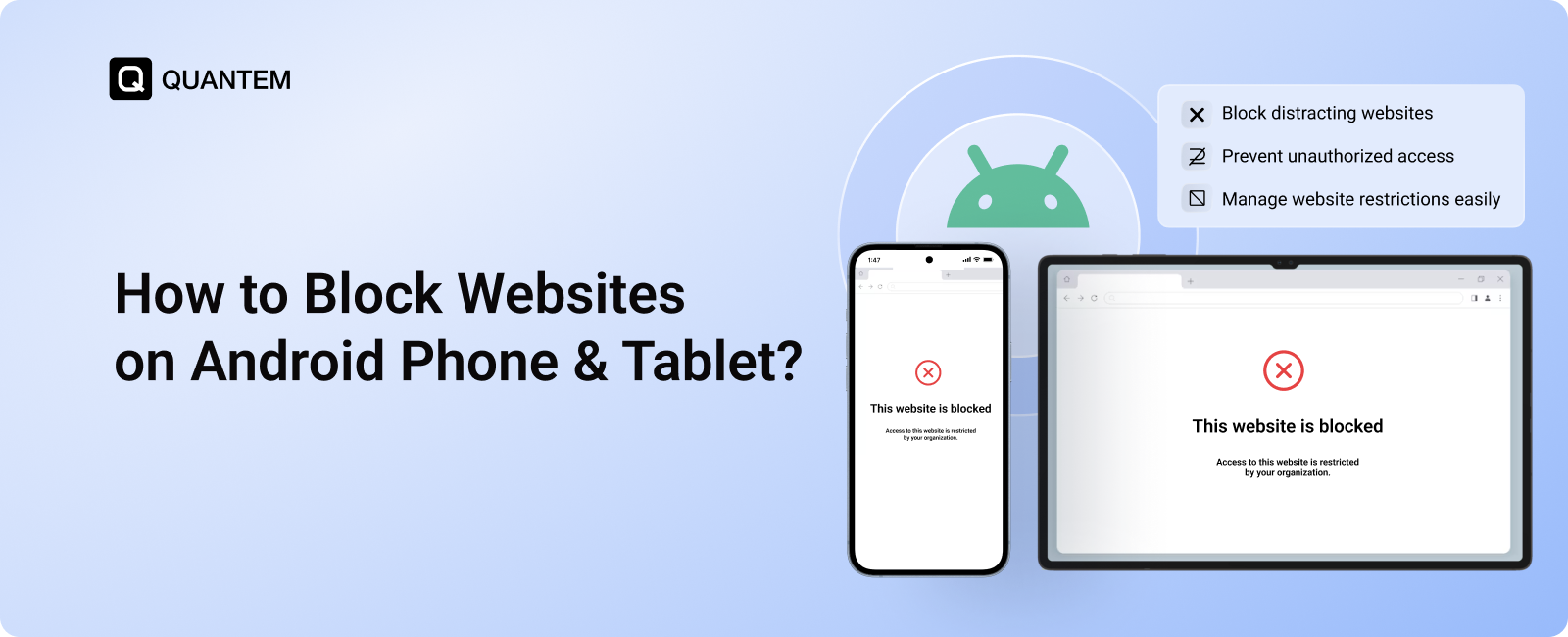
When Android devices are used across multiple teams or locations, managing website access individually can quickly become difficult. Quantem MDM gives IT administrators a centralized way to define which websites users can access on managed Android devices.
Depending on the organization's requirements, administrators can use URL Filtering to block specific websites or use Website Whitelisting to limit browsing to a predefined set of approved websites.
Method 1: Block Websites
You can block websites by configuring URL filtering under Secure Browser.
1. Go to Compliance → Policies.
2. Open the required policy.
3. Go to Secure Browser → URL Filtering.
4. Select Blocklist.
5. Add the Website Name and Website URL.
6. Save and publish the policy.
Method 2: Website Whitelisting
You can also use the URL filtering configuration to allow access only to specified websites. This is useful when users should be restricted to a defined set of websites.
1. Open the required Android policy under Compliance → Policies.
2. Navigate to the Google Chrome URL filtering configuration.
3. Select Whitelist.
4. Enter the Website Name and Website URL that users should be allowed to access.
5. Add the required websites to the whitelist.
6. Save and publish the policy to apply the configuration to the assigned devices.
With whitelist mode enabled, users can access only the websites added to the whitelist, according to the configured Chrome policy.
Best Practices for Blocking Websites on Android Devices for Enterprise Use
Website blocking is more effective when it is planned around how employees actually use Android devices. A good policy should protect the organization without preventing users from accessing websites they need for their work.
1. Define What Needs to Be Restricted
Start by identifying the types of websites and keywords that should be restricted. Social media, streaming, gambling, adult content, malicious domains, and other non-business categories can be reviewed based on your organization's requirements.
2. Use Whitelisting for Dedicated Devices
For Android devices designed for a specific workflow, consider whitelisting only the websites required for that task. This approach works well for kiosk software, customer-facing tablets, digital workstations, and other purpose-built devices.
3. Organize Policies by User or Device Group
Not every employee or BYOD user needs the same level of web access. Create separate website policies for departments, roles, locations, or device groups so restrictions match the way each group uses its Android devices.
4. Keep Business-Critical Websites Accessible
Before blocking a website, verify whether employees rely on it for daily operations. Maintaining an appropriate allowlist can prevent legitimate business services from being accidentally restricted.
5. Review Web Access Policies Regularly
Website requirements change over time. Periodically review your URL blocklists and allowlists to remove outdated entries, add newly identified risks, and keep policies aligned with current business needs.
6. Combine Website Controls With Device Policies
Website filtering should not operate in isolation. Pair URL restrictions with other MDM controls, such as application management, device security policies, and browser restrictions, to create a more controlled Android environment.
7. Test Policies Before a Broad Rollout
Apply a new website policy to a small group of devices before deploying it across the entire organization. Test essential websites and business workflows to identify unintended restrictions before they affect more users.
8. Explain Restrictions to Employees
Users are more likely to understand and follow web access policies when they know what is restricted and why. Communicate the purpose of website blocking and provide a process for reporting a website that has been blocked incorrectly.
Block Websites on Android Devices with Quantem MDM
Managing website access across a growing fleet of Android phones and tablets can become difficult when restrictions have to be configured individually. Quantem MDM gives IT teams a centralized way to control web access and apply consistent policies across managed Android devices.
With URL Filtering, administrators can block specific websites that users should not access. Website Whitelisting provides a more controlled option by allowing access only to websites that have been explicitly added to the approved list.
These controls can help organizations reduce distractions, restrict unwanted web content, and keep business devices aligned with their intended use. Instead of managing website restrictions separately on every device, IT teams can configure the required policy and publish it to assigned Android devices.
Whether you need to block a few specific websites or create a tightly controlled browsing environment, Quantem MDM gives your IT team a centralized way to manage website access.
Keep Your Android Devices Focused and Secure with Quantem
1. How Do I Block Websites on Chrome Browser on Mobile?
On Android, website access can be controlled using options such as Google SafeSearch, Chrome's security settings, Private DNS, Google Family Link, or an Android MDM solution. For business-managed devices, MDM provides centralized website restrictions that can be applied across multiple Android phones and tablets.
2. Can You Block Harmful Websites on Android Phones and Tablets?
Yes. Android devices can use features such as Chrome Safe Browsing, SafeSearch, DNS filtering, and MDM-based URL restrictions to reduce access to harmful or inappropriate websites. The appropriate method depends on whether you're managing an individual device or an enterprise device fleet.
3. Does Website Blocking Work in Incognito Mode on Android?
Website restrictions can depend on the method used to enforce them. Browser-level controls may have different coverage from device-level policies, while an MDM solution can apply centralized website restrictions to managed Android devices. For enterprise environments, device management provides broader control over how users access the web.
4. How Do I Block Websites on Android Without Installing an App?
You can use built-in options such as Google SafeSearch, Chrome Safe Browsing, or Android's Private DNS settings without installing a dedicated website blocker application from the google play store. For organizations, an MDM solution can centrally apply website restrictions to enrolled Android devices.
5. How Do I Block Specific Websites on an Android Phone?
Specific websites can be restricted using URL filtering or other web-filtering methods. With Quantem MDM, administrators can add individual websites to a Blocklist under Secure Browser → URL Filtering and publish the policy to assigned Android devices.
6. How Do I Permanently Block Websites on Android?
For enterprise-managed Android devices, website restrictions can be enforced through an MDM policy rather than relying on manual settings on individual devices. Quantem MDM lets administrators create URL filtering policies and publish them to assigned devices, helping maintain consistent website restrictions across the managed fleet.



Get the latest blogs directly delivered to your mail fly arrow